
How do you use the community in the app?
The community is a place where MM gardeners can connect with each other, share photos of their gardens, ask questions, help each other, and just have a nice chat.
We've made the community as easy to use as possible. But if you still don't understand something, you can look it up here.
If you're still stuck, let us know: ask a question in the community or email us directly.
We've made the community as easy to use as possible. But if you still don't understand something, you can look it up here.
If you're still stuck, let us know: ask a question in the community or email us directly.
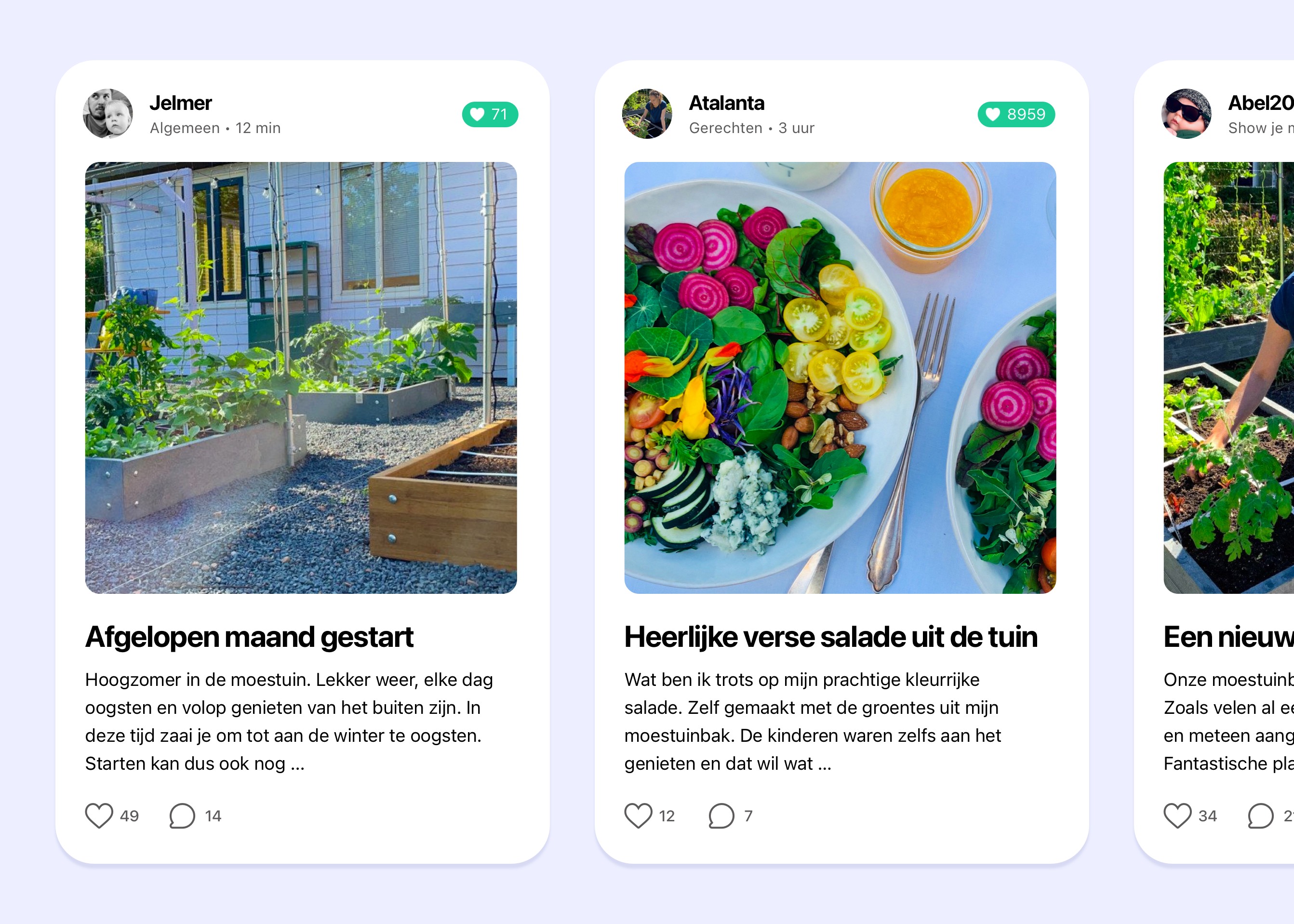

What is it?
The community is our own platform, made as a place to meet each other.
It works a little differently from a standard forum, and feels more like Facebook and Instagram. Without the nasty sides, and without annoying ads 😉
It works a little differently from a standard forum, and feels more like Facebook and Instagram. Without the nasty sides, and without annoying ads 😉

How does it work?
I'll walk you through it step by step. But again: for most people, everything is pretty self-explanatory, so they won't need to read this.
This explanation is for the community inside the app. You get there by tapping the heart at the bottom of the main menu.
Note: the images you see here are a little outdated, and a few things have changed here and there. But it should still be clear enough.
This explanation is for the community inside the app. You get there by tapping the heart at the bottom of the main menu.
Note: the images you see here are a little outdated, and a few things have changed here and there. But it should still be clear enough.
First, a word about the rules
The community is a safe place for everyone. That's super important to us.
That's why we comply with all privacy rules and remove nasty posts or comments immediately. We keep a close eye on it ourselves, and we have several active 'admins'. We also use an algorithm that immediately removes nasty or inappropriate photos.
We also made a few rules. Just to prevent misunderstandings. Though we assume it will stay a fun and friendly platform: MM gardeners are lovely people, after all 🙂
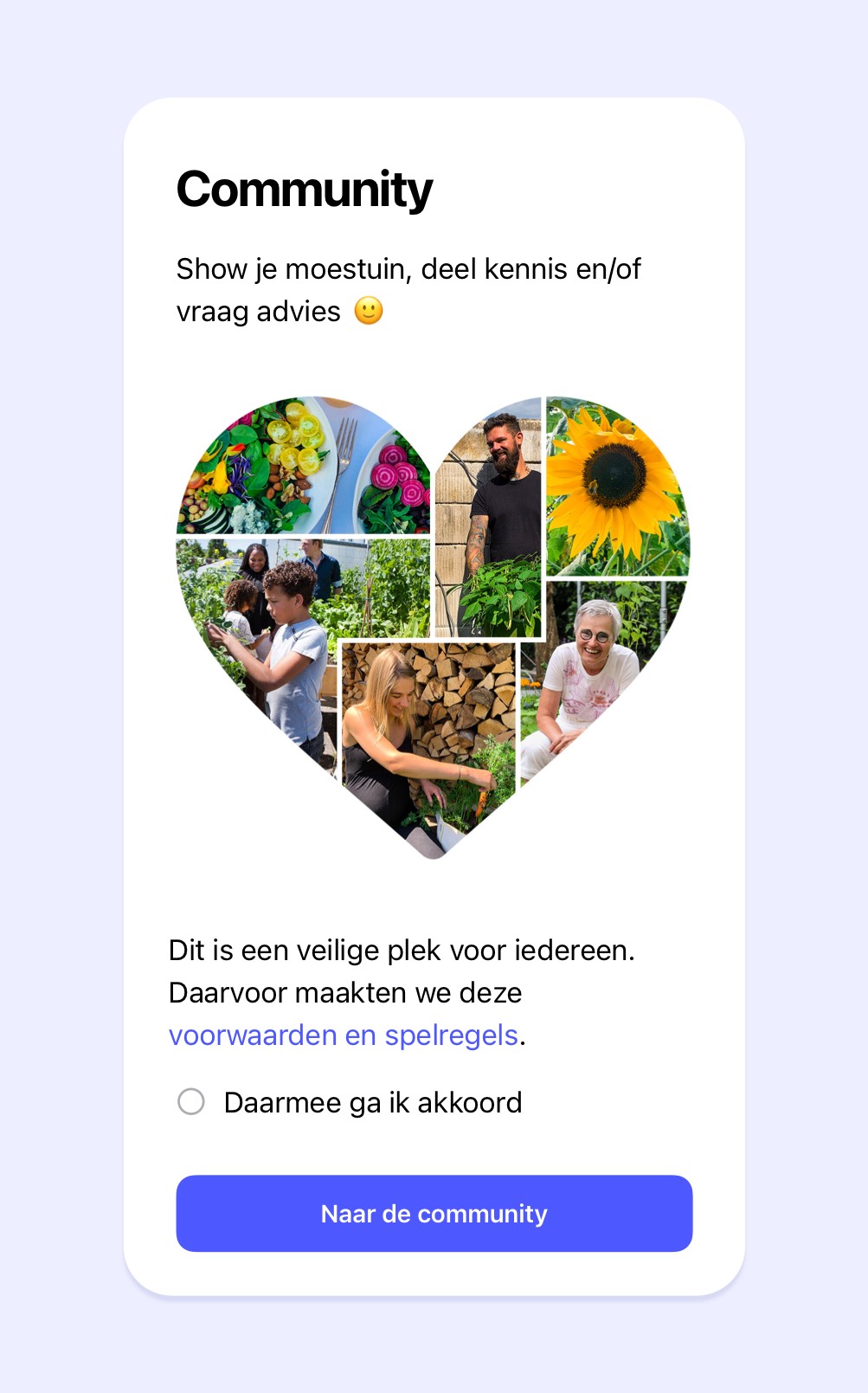
To use the community in the app, you first have to agree to these terms and rules.
Go to the community rules
That's why we comply with all privacy rules and remove nasty posts or comments immediately. We keep a close eye on it ourselves, and we have several active 'admins'. We also use an algorithm that immediately removes nasty or inappropriate photos.
We also made a few rules. Just to prevent misunderstandings. Though we assume it will stay a fun and friendly platform: MM gardeners are lovely people, after all 🙂
To use the community in the app, you first have to agree to these terms and rules.
Go to the community rules
Create a username
The community is public. That means everyone can see all posts, photos, and replies, even if they don't have an account. But if you want to post something yourself or reply somewhere, you need an account with a username.
You already created an account when you logged into the app. You just still need to choose a username. You can do that in two ways:
You already created an account when you logged into the app. You just still need to choose a username. You can do that in two ways:
- At the top of the community opening screen. There you'll see a field where you enter your preferred username.
- Or in the pop-up that opens automatically when you want to post something or reply somewhere.
Create your own post
Use the plus sign to create your own post.
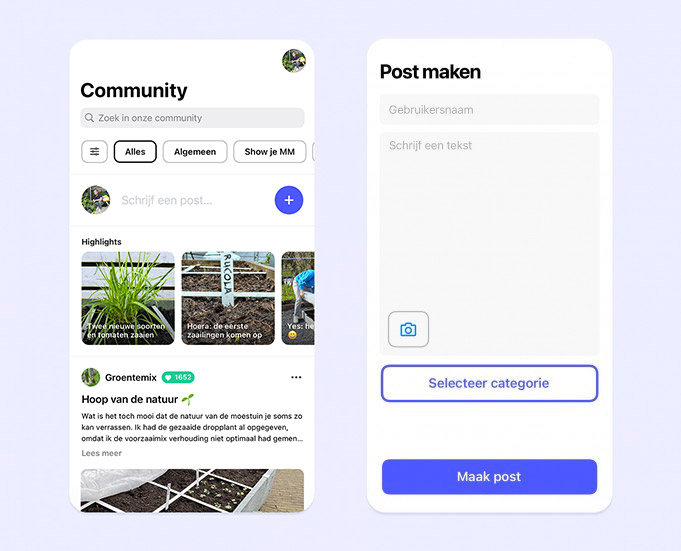
You write a title, then your text, and if you want, you add photos. Finally, you attach a category. For example Questions, Show your MM, Recipes, or Tips.
Posts in most of those categories are also visible on the 'wall'. Posts in the other categories are only visible if you tap that category. For example 'Questions' and 'Not quite MM'.
Where can I find my own posts again?
The easiest way is to tap the filter icon at the top right, then tap 'By me' at the bottom of the list that appears.
Posts in most of those categories are also visible on the 'wall'. Posts in the other categories are only visible if you tap that category. For example 'Questions' and 'Not quite MM'.
Where can I find my own posts again?
The easiest way is to tap the filter icon at the top right, then tap 'By me' at the bottom of the list that appears.
Replies
As soon as you've created a username, you can reply to others. You can also reply to a reply; your reply will appear directly underneath it. The person who posted and the people who already replied will get a notification.
(If you want to draw other people's attention to the post, you can 'tag' them in your reply. You do that like this: @name. Note: names with spaces or punctuation don't work.)
The bell at the top / notifications
At the top right (or on the left in Android) you'll see the little bell icon. This takes you to the notifications screen, where all your community messages are listed. For example when someone replies to your post, or when you receive a heart. Tap one of those messages and you'll go straight to the post, and the message disappears from your overview.
Edit a post or reply
Not happy with your reply or with what you posted? You can always change it by tapping your own post or reply, then tapping the three dots at the top. You can also delete it there. Don't forget to tap the blue Update post button afterwards 😉
(If you want to draw other people's attention to the post, you can 'tag' them in your reply. You do that like this: @name. Note: names with spaces or punctuation don't work.)
The bell at the top / notifications
At the top right (or on the left in Android) you'll see the little bell icon. This takes you to the notifications screen, where all your community messages are listed. For example when someone replies to your post, or when you receive a heart. Tap one of those messages and you'll go straight to the post, and the message disappears from your overview.
Edit a post or reply
Not happy with your reply or with what you posted? You can always change it by tapping your own post or reply, then tapping the three dots at the top. You can also delete it there. Don't forget to tap the blue Update post button afterwards 😉
Order of posts and replies
On the community home screen, you'll see 'the wall'. It contains all posts from the visible categories, with the latest post always at the top.
For categories that are only visible when you tap them, it works the same way, except those posts only appear there and not on 'the wall'.
Within a post, the latest replies are also at the top, followed by the older ones.
Replies to replies are shown underneath each other.
For categories that are only visible when you tap them, it works the same way, except those posts only appear there and not on 'the wall'.
Within a post, the latest replies are also at the top, followed by the older ones.
Replies to replies are shown underneath each other.
Giving and receiving hearts
When you like another user's post, photo, or reply, they get a heart from you. It works the other way around too: if someone else likes your post, photo, or reply, you get a heart.
Search, filter, and topics
This is the community start screen:
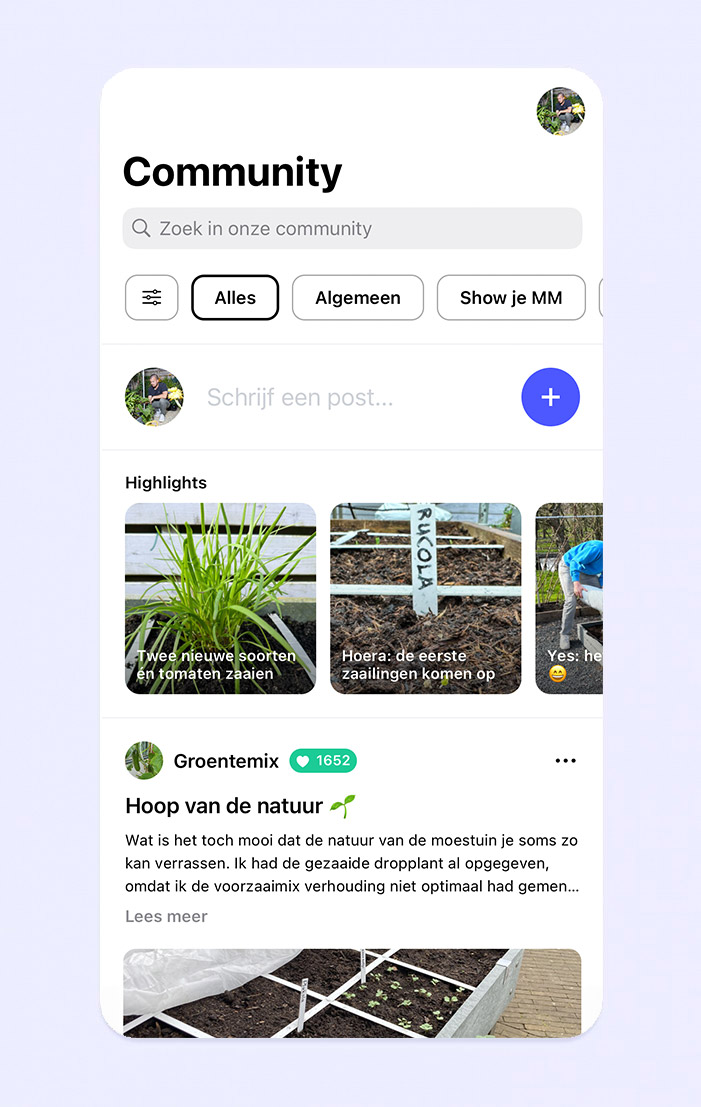
There, you can search for a topic by typing it into the search screen. If the search word appears somewhere, those posts will come up.
Under the search bar, you'll find all topics and the filters New, Popular, By me, Unanswered, and Liked. Seems clear enough, right?
Under the search bar, you'll find all topics and the filters New, Popular, By me, Unanswered, and Liked. Seems clear enough, right?
Inside a topic, the fixed items are at the top: there we welcome you and explain the rules.
Below that, you'll see the sticky posts: a question from us or a post we think is very important. You can recognize them by the pin.
Below that are all the other posts. On the start page, the most recently posted item is always at the top.
Below that, you'll see the sticky posts: a question from us or a post we think is very important. You can recognize them by the pin.
Below that are all the other posts. On the start page, the most recently posted item is always at the top.
The community on desktop
On desktop, the community works a little differently than in the app. There, for example, you can adjust the photos in your post, and you can also follow someone if you always really like their posts. For that last one, tap those three dots again.
(In the next big update, we'll add those features to the app too. Then there will be almost no differences left, and we'll update all the images here too.)
(In the next big update, we'll add those features to the app too. Then there will be almost no differences left, and we'll update all the images here too.)